Two methods compared: a free Dawn code customization vs a no-code app. Pick the best approach for your store.
.webp)
By default, Shopify groups all product variants under a single product card on collection pages. If you're using the Dawn theme and want each variant — color, size, material — to appear as its own product card, there are two ways to do it:
This guide covers both methods so you can choose the one that fits your store.
In a hurry? Install Variantify on Shopify — set up variant display in under 5 minutes, no code required. 7-day free trial.
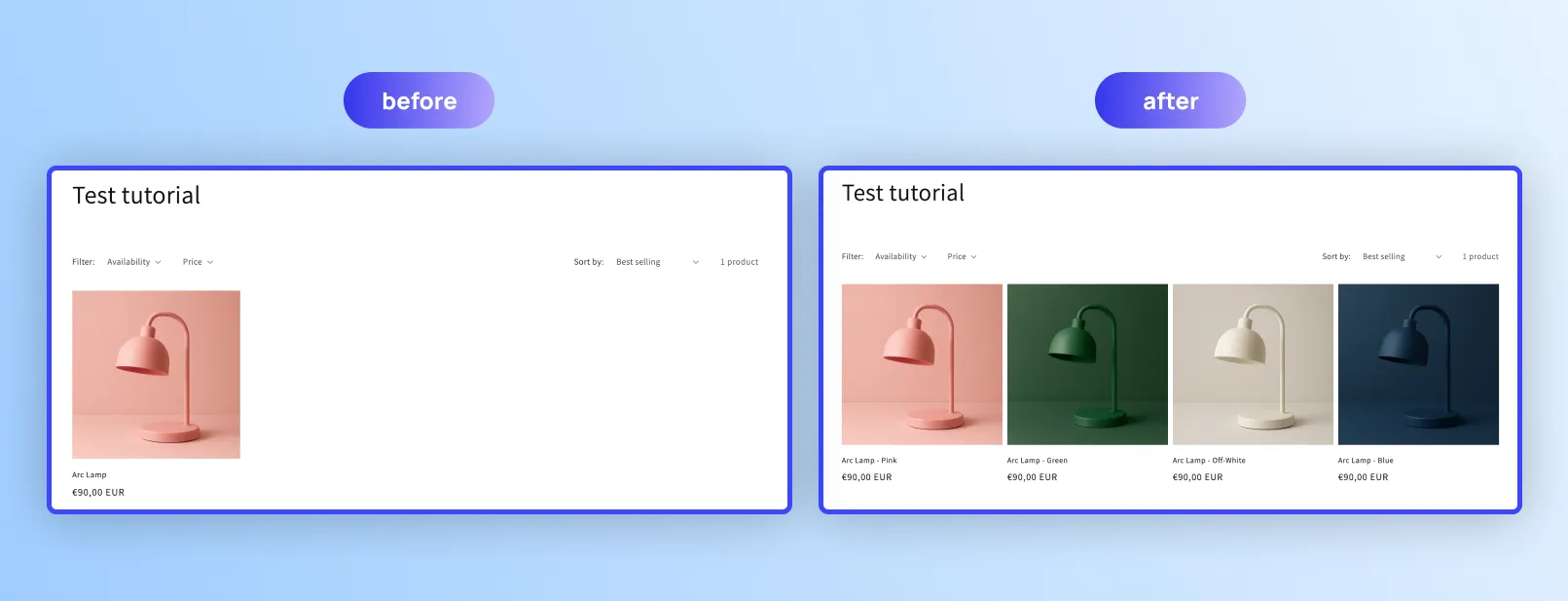
Displaying variants as individual products on collection pages helps you:
Customers see every color, size, or material at a glance instead of clicking into each product.
Stores using this approach report up to 32% higher CTR on collection pages.
Shoppers find what they want faster, especially for visually-driven products like apparel, accessories, or home décor.
More visible options means more add-to-carts.
This is especially effective for products where visual choice is the main decision factor.
Before diving into the how-to, here's a clear comparison of both approaches. This will help you decide which method is right for your store.
Bottom line: The code method works as a free workaround for simple, small stores on the Dawn theme. But if you want something reliable, scalable, and maintenance-free, an app is the better long-term choice.
Variantify is a Shopify app that displays your product variants as individual product cards on collection pages, homepage, and search results — without touching your theme code.
How it works :
Install Variantify from the Shopify App Store and enable the app embed in your theme settings. No coding needed.
by color, size, material, or any variant option in your catalog.
Select which collections to activate — you control exactly where variants appear as separate products.
That's it. Each selected variant now shows as its own product card in your collection grid.
What you get with Variantify that you can't do with code:
What merchants say:
"We tested more than 10 apps from the Shopify store, but nothing worked. Then we installed Variantify — it took less than 10 minutes to set up with live chat support. Highly recommended!"
"The app works perfectly to show variants as separate products on my collection pages. Super easy to set up and the display looks great."
Rated 5.0/5 on the Shopify App Store.
👉 Start your free trial — Install Variantify
If you prefer a hands-on approach and you're comfortable editing Shopify theme files, this section walks you through a free, Dawn-specific code customization.
This method:
If any of these limitations are dealbreakers, use Variantify instead.
Not using the Dawn theme?
This tutorial relies on Dawn's specific collection grid structure and product card snippets. There is no universal free method that works identically across all Shopify themes. If you're on a different theme, a dedicated app like Variantify is the most reliable option — it works with all Online Store 2.0 themes.
Always work on a copy to avoid breaking your live store.
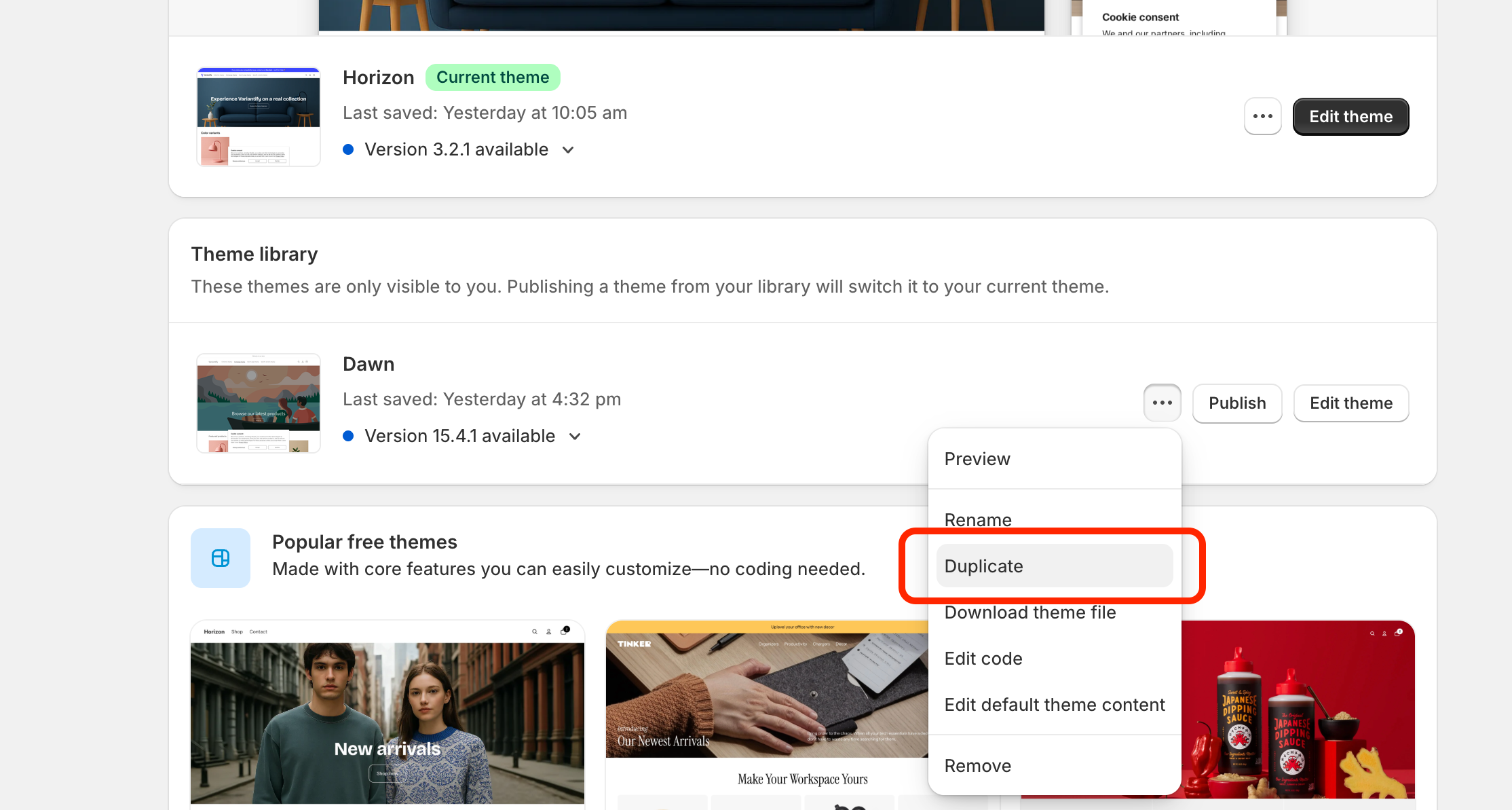
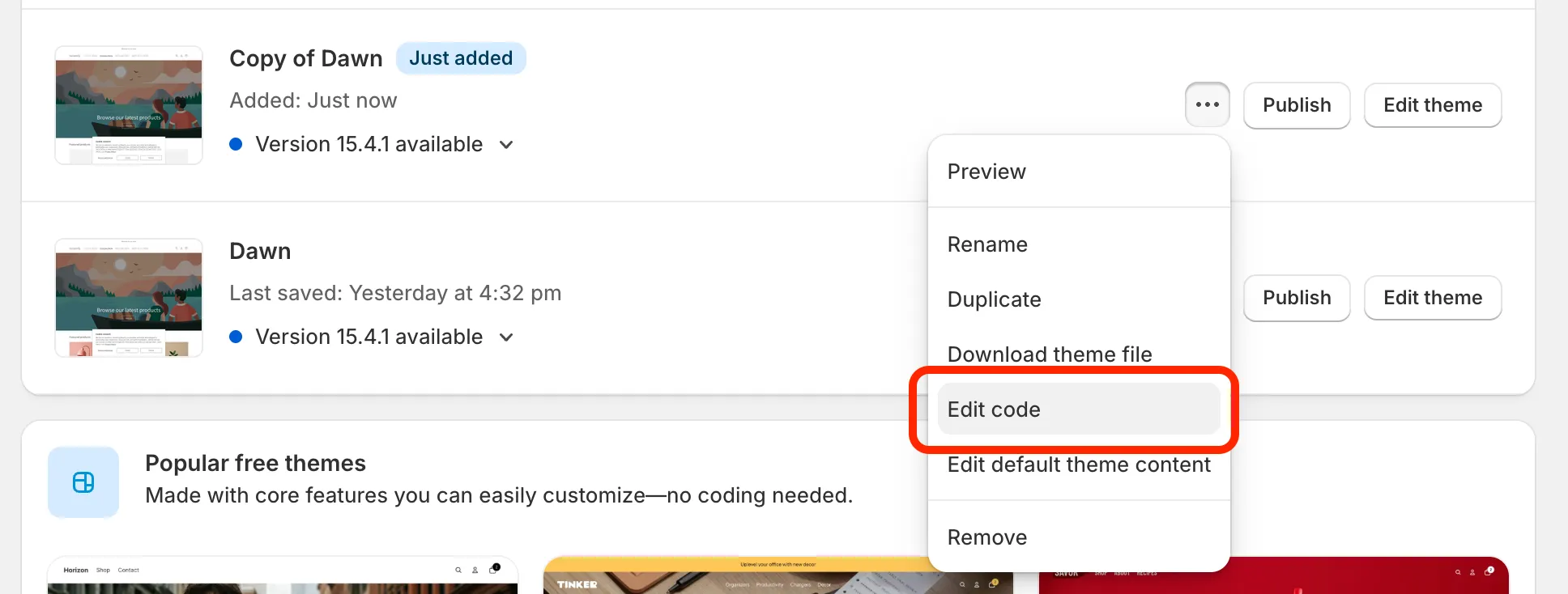
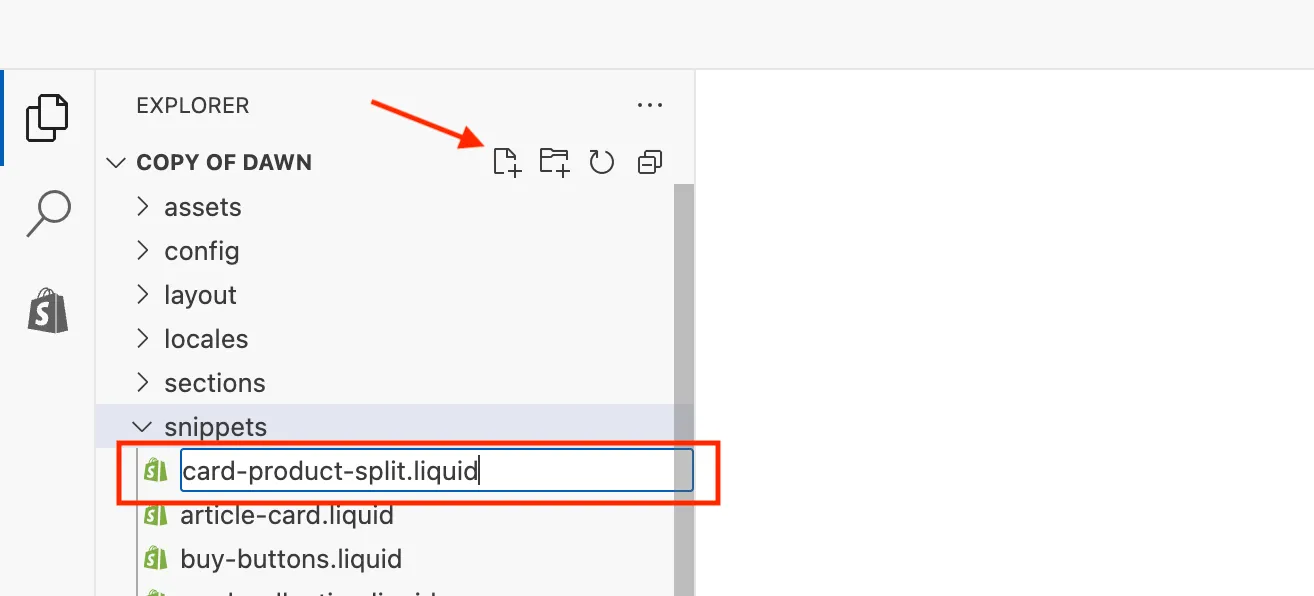
This snippet renders one variant as one product card.Always work on a copy to avoid breaking your live store.
<li> block responsible for rendering product cards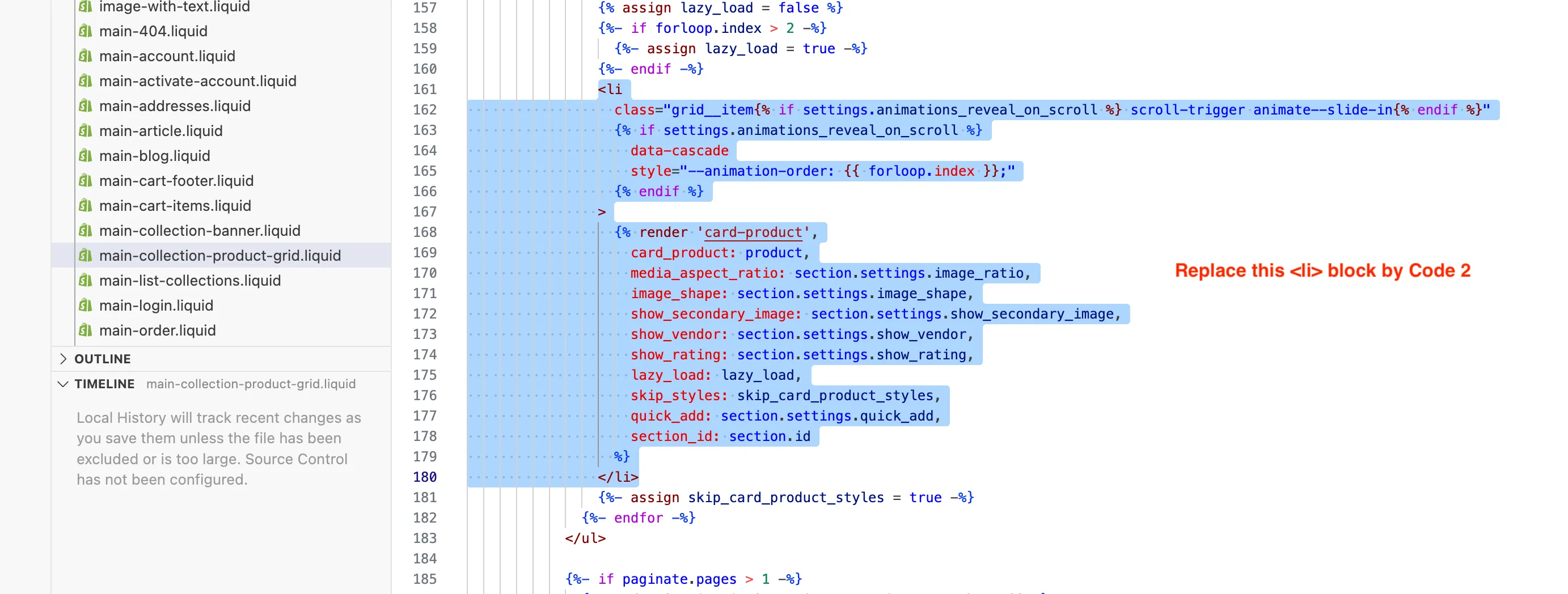
This change loops through variants instead of products and outputs one card per variant.This snippet renders one variant as one product card.Always work on a copy to avoid breaking your live store.
By default, the code splits variants using the Color option:
assign option_chosen = "Color"
You can change this to any option name used in your products, for example: "Size" or "Material".
⚠️ The option name must match exactly what is defined in Shopify (case-sensitive).
Each variant is now displayed as its own product card in the collection grid.
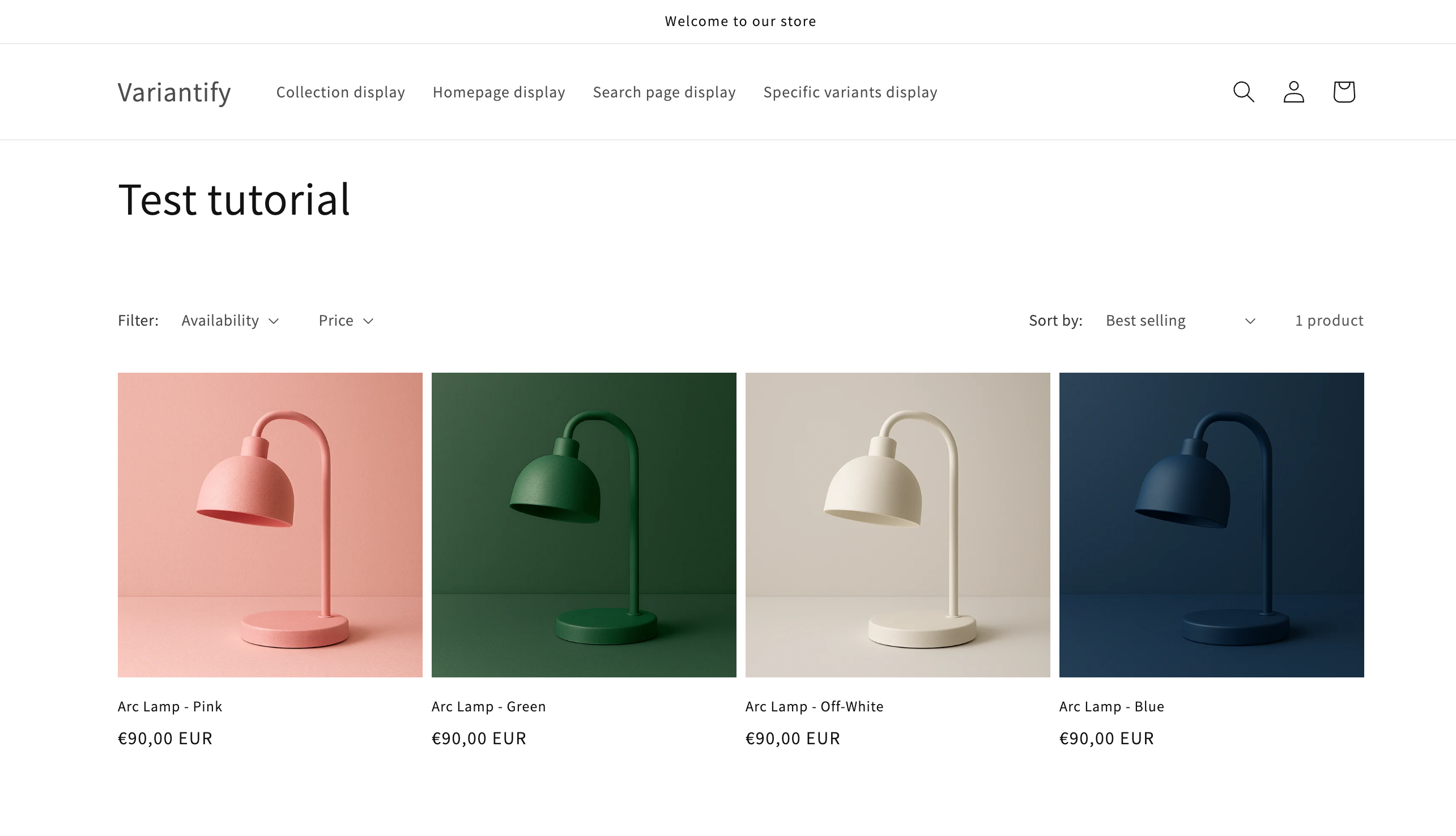
This approach works, but comes with real trade-offs that matter as your store grows:
For stores that need reliability, flexibility, and zero maintenance, Variantify handles all of this automatically.
Prefer watching instead of reading? This video walks you through the code method step by step, from duplicating the Dawn theme to seeing each variant displayed as an individual product card.
Variantify gives you everything the code method can't: per-collection control, out-of-stock filtering, hover images, homepage and search support, and zero maintenance.

