Hide Out of Stock Variants on Shopify Collection Page (No Code)

Table of contents
Toc Heading
Toc Heading
Toc Heading

This guide explains how to hide out-of-stock variants on Shopify collection pages without affecting SEO or modifying your theme’s core files.

If you’re using product variants in Shopify (color, size, material, etc.), you’ve probably noticed something frustrating:

👉 Even when a variant is out of stock, it can still appear in your collection page grid.

This creates:

  • A cluttered product grid
  • Poor user experience
  • Lower click-through rate
  • Lost sales opportunities

In this guide, you’ll learn how to hide out of stock variants on Shopify collection pages — step by step — without breaking your SEO or editing complex theme code.

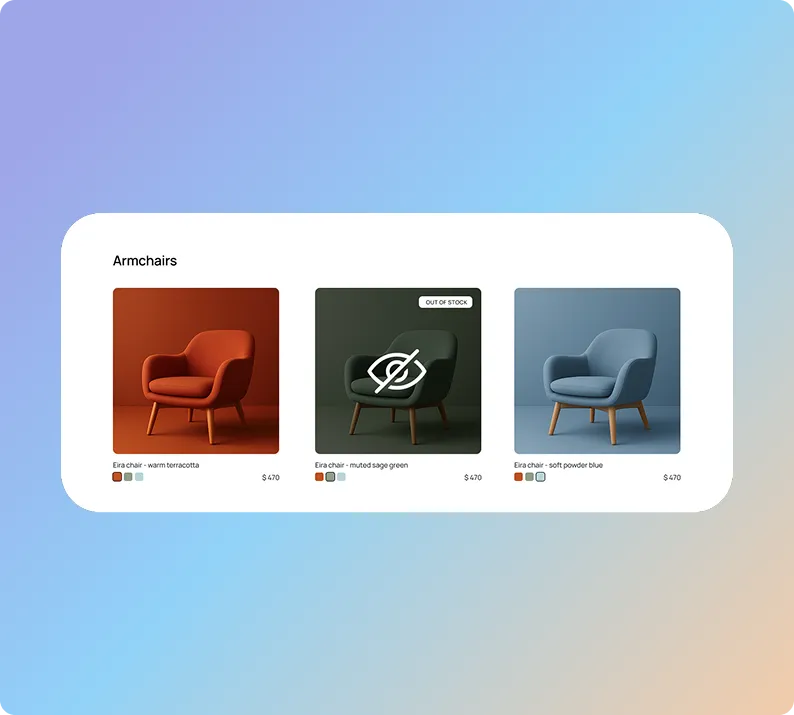
Three armchairs in warm terracotta, muted sage green marked out of stock, and soft powder blue, each priced at $470.
⚠️ Important: This guide focuses on hiding out-of-stock variants on the collection page, not on the product page dropdown selector.

Why Hide Out-of-Stock Variants on Collection Pages?

When customers browse your collection pages, they expect to see:

  • Available products
  • Clickable items
  • Items they can actually purchase

Showing unavailable variants in the product grid can:

  • Reduce trust
  • Increase bounce rate
  • Create frustration
  • Make your store look poorly managed

Hiding them improves:

  • Conversion rate
  • Visual clarity
  • Inventory perception
  • Merchandising control

How Shopify and Themes Handle Out-of-Stock Variants by Default

By default, Shopify:

  • Can hide sold-out products
  • But does not automatically hide individual variants at the collection grid level

However, this behavior also depends on how your Shopify theme renders collection cards.

Here’s why:

Shopify groups variants under a single parent product.

Most themes display the product object in collections — not individual variant inventory logic.

So even if:

  • A specific variant is out of stock
  • Or only some variants are unavailable

The collection grid still renders the parent product.

When variants are displayed as separate items in collections, the theme does not automatically filter them by inventory status.

That’s where additional logic (or an app) is required.

3 Ways to Hide Out-of-Stock Variants on Shopify Collections

Method 1 – Duplicate Products (Not Recommended)

Some merchants duplicate products and manually remove unavailable variants.

Problems:

  • Inventory desynchronization
  • SEO duplicate content risk
  • Manual maintenance nightmare
  • Broken reporting

Not scalable.

Method 2 – Edit Your Theme Code

You can modify:

  • card-product.liquid
  • Collection templates
  • Inventory conditions in Liquid

But this approach:

  • Requires developer knowledge
  • Breaks on theme updates
  • Risks SEO structure override
  • Can conflict with filtering apps

This is fragile and technical.

Method 3 – Hide Out-of-Stock Variants with a No-Code App (Recommended)

The safest and most scalable method is using an app that:

  • Splits variants correctly
  • Maintains Shopify’s native markup
  • Filters inventory at the collection level
  • Does not duplicate products
  • Keeps SEO structure intact

For example, with Variantify, you can:

All without editing your theme.

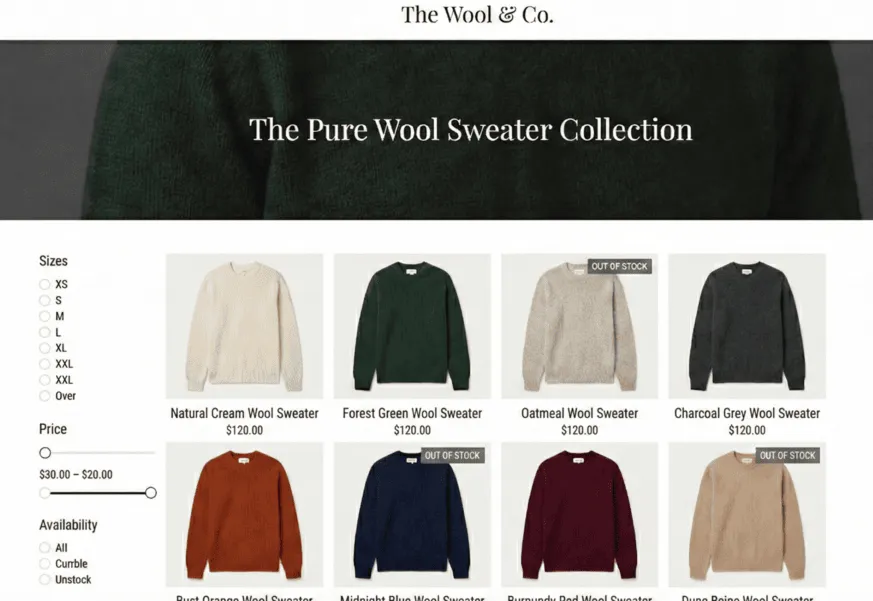
Online store page for The Wool & Co. showing The Pure Wool Sweater Collection with images and prices of various sweaters and sidebar filters for size, price, and availability.
Before enabling the "hide out of stock variants" feature

E-commerce page showing The Pure Wool Sweater Collection with five sweaters in cream, forest green, charcoal grey, rust orange, and burgundy red, each priced at $120.
After enabling the "hide out of stock variants" feature

Step-by-Step: Hide Out-of-Stock Variants in Shopify Collections

Step 1 – Install Variantify

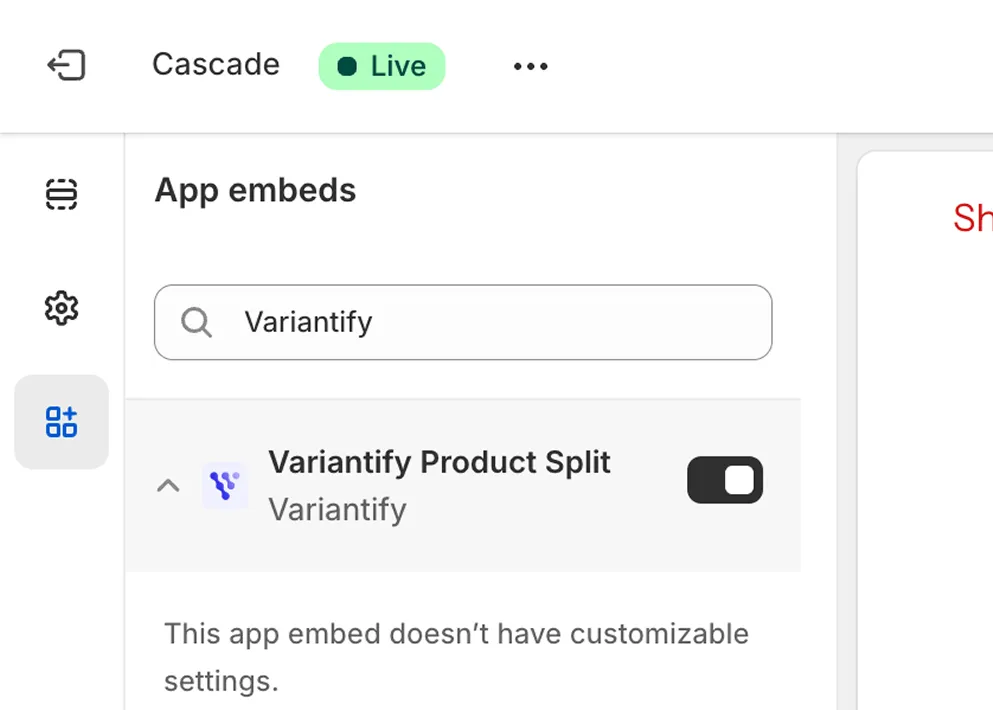
Install the app from the Shopify App Store and enable the App Embed in your theme settings.

No coding required.

Shopify App Store page showing the Show variants - Variantify app with pricing from $9.99/month, 5-star rating, install button, and an illustration explaining how the app splits product variants by options and displays them individually in collections.

Step 2 – Open Your Collection Settings

Inside the app dashboard:

  • Select the collection you want to manage
  • Enable variant display (if not already active)
Variantify dashboard showing collections with Bifold Wallet and Cloud Wallets enabled for variant display, manual collection type, and options to view or edit.

Step 3 – Enable “Hide Out-of-Stock Variants”

In the display settings:

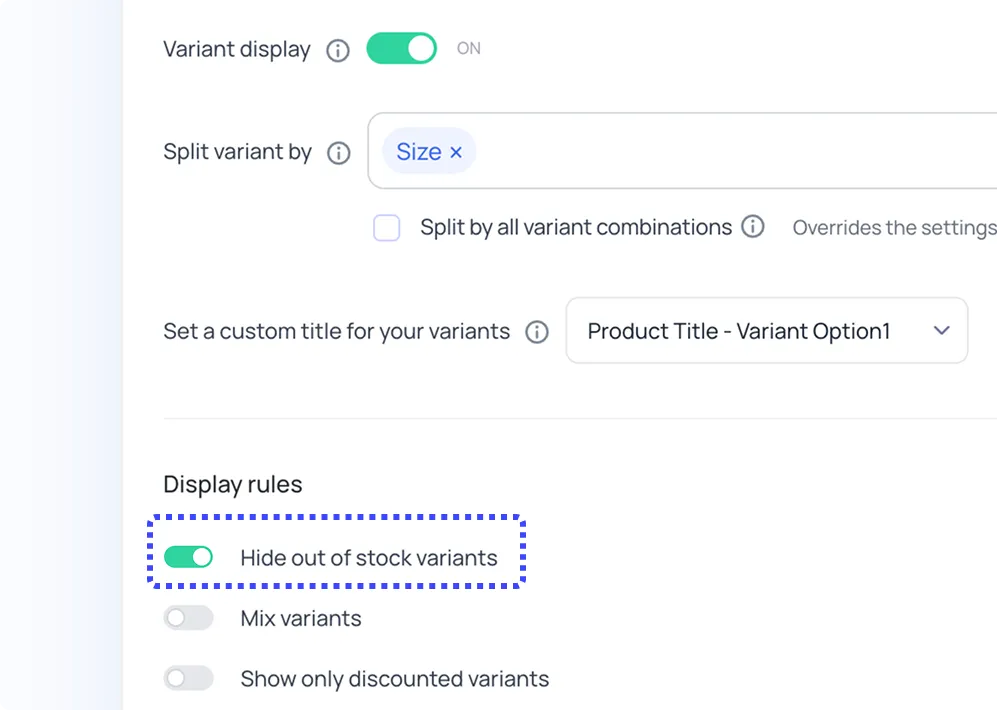
✔ Activate “Hide out-of-stock variants”

Display settings with toggle switches for variant display, hide out of stock variants enabled, show only discounted variants off, and a dropdown for setting a custom title for variants.

Now:

  • Unavailable variants disappear from the collection grid
  • Only in-stock variants remain visible
  • Your collection stays clean and optimized

Final Thoughts

If you’re splitting variants on Shopify collection pages, controlling inventory visibility is essential.

Hiding out-of-stock variants:

  • Cleans up your grid
  • Improves perceived availability
  • Reduces friction
  • Increases conversion potential

If you want a no-code, SEO-safe solution:

👉 Install Variantify and manage your variant visibility with full control.

Does Hiding Out-of-Stock Variants Affect SEO?

Short answer: No — if implemented correctly.

Important factors:

  • Do not duplicate products
  • Keep canonical structure intact
  • Preserve Shopify’s original product URLs
  • Avoid replacing the entire product grid markup

A proper implementation enhances UX without harming SEO.

In fact, cleaner collections can improve:

  • Click-through rate
  • Engagement signals
  • Conversion rate

Can Shopify automatically hide out-of-stock variants?

Not exactly.

Shopify can automatically hide sold-out products, but hiding individual out-of-stock variants on collection pages depends on how your theme renders product cards.

Most Shopify themes (including Dawn) display the parent product in collections rather than filtering by individual variant inventory. As a result, out-of-stock variants are not automatically removed from the collection grid without customization or additional logic.

Can I hide only specific variants?

Yes.

If you're displaying variants individually in collection pages, you can control exactly which variants appear.

With Variantify, for example, you can:

• Hide variants based on inventory status
• Display only specific variants using SKU-based selection
• Create custom collections with selected variants only

This allows you to precisely manage variant visibility without duplicating products or editing your theme code.

Is it better to hide or disable sold-out variants?

On collection pages, hiding out-of-stock variants generally provides better UX.

On product pages, disabling can sometimes make sense for back-in-stock flows.

Can I show only discounted variants?

Yes.

On Shopify collection pages, showing only discounted variants requires additional filtering logic, since Shopify does not natively filter individual variants by discount status in collection grids.

With Variantify, you can:

• Display only discounted variants
• Combine discount filtering with inventory filtering
• Control visibility per collection

This is especially useful for sale collections, seasonal promotions, and clearance merchandising.